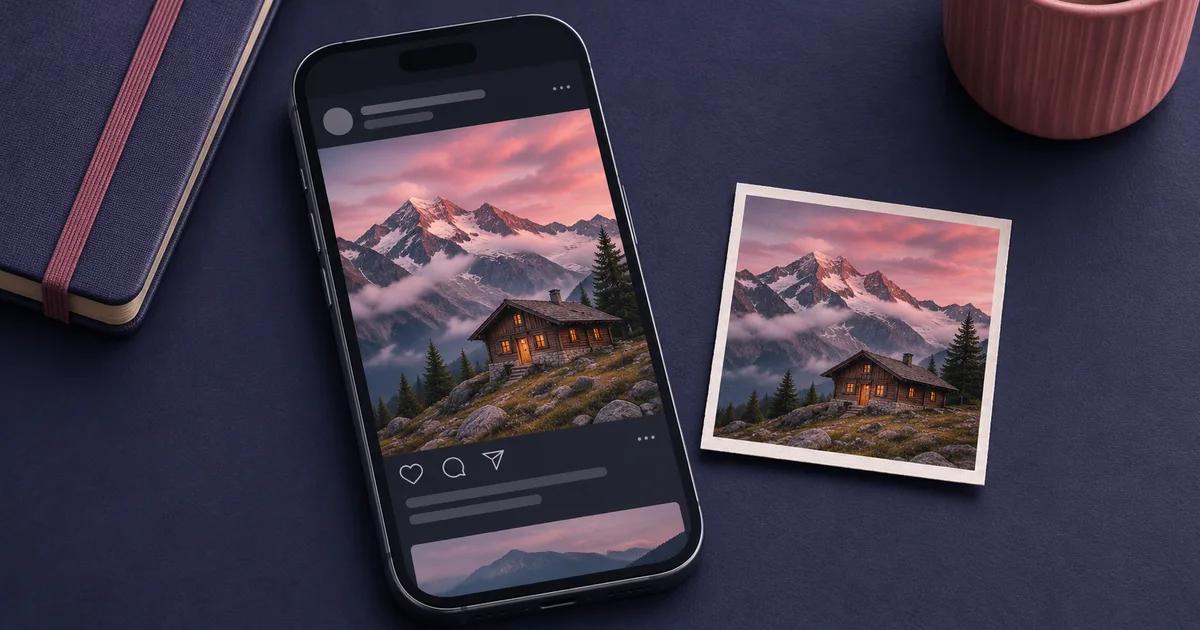
Open the Instagram post and look for an AI disclosure on the post or in its menu. Read the label details and the caption, then try to trace the image to the creator. If you only have a screenshot, use it to find the post first. If you get the original file, check for records of how it was made.
| What you have | Start here |
|---|---|
| The Instagram post | Open the AI label if present. Save the permalink and check the caption and creator. |
| A repost or screenshot | Locate the original post or reverse-search the photo itself. |
| The creator’s file | Check for Content Credentials and read what they record. |
Where can you find the AI label on Instagram?
Look at the post and open its three-dot menu. Meta refers to the label as “AI info” in its labeling announcement. Its policy describes showing the label on content it detects as generated and placing it in the menu for content it detects was edited with AI. Meta says it can label posts using industry signals or a creator’s disclosure. Meta’s official labeling guidance
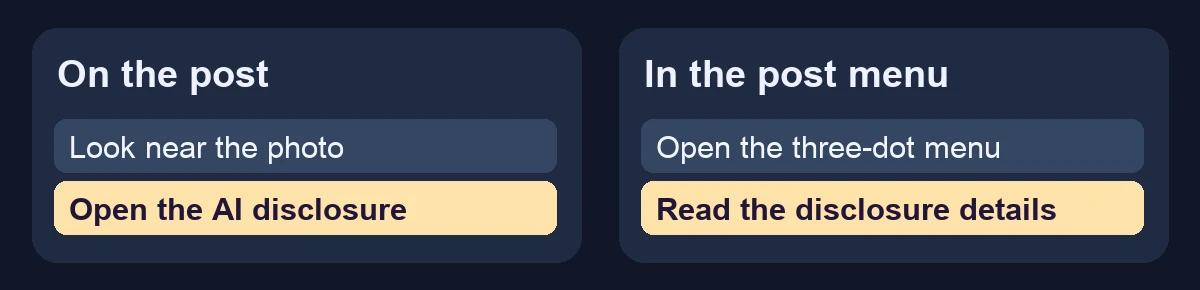
Tap the label if it appears and read the explanation. Meta’s earlier illustrated example shows how a disclosure can appear on a post. The wording in that example predates its “AI info” update. Meta’s illustrated example Then read the caption. If the creator says they retouched one detail, record that wording. If they say they generated the whole image, save that disclosure with the post link. An unlabelled photo still needs a source check when its origin matters.
On a carousel, note the slide you examined. Save the caption, the handle, and the post link so someone else can find the same image. An account that regularly posts synthetic images can also publish camera photos.
How do you check a repost or screenshot?
Start with any visible username, caption, landmark, or credit. If you recognize the account, find the image in its feed and compare the photo and caption with your copy. If you have only a crop, try the whole photo in Google Lens and then a distinctive area such as a building, sign, or patch of coastline. Use a separate search copy so you can still refer to the screenshot as received. Google Lens instructions
Open the pages behind promising matches. Compare dates, captions, and any credits or production notes. Google’s “About this image” can surface earlier uses or when Google first encountered a similar version. Use those dates to investigate where the image circulated. The earliest result you find may still be a repost. Google’s image context guide
Imagine an Instagram caption advertising the cabin shown in the illustration above. If you find the same picture in an older portfolio captioned “AI concept art,” save the portfolio link and quote the description. You now have a documented statement about the image’s origin. To verify that the cabin is available to book, check the property through its owner or booking service separately. The cover illustration is AI-generated for this guide.
What can you learn from the original file?
Ask for the export that was uploaded, along with a camera original or earlier export if the question is about one edited area. Check for signed Content Credentials. When the file contains them, inspect who signed them and whether the recorded actions describe camera capture, an edit, or generation. If the tool finds no credentials, record that the file history remains unverified. AIFakeScan Content Credentials checker
Use the image detector if you want to inspect additional file and visual signals. Tell whoever reads your conclusion which version you scanned. A result for a screenshot applies to that copy, and the creation data or visual signals can change when a file is screenshotted or compressed. Image detector · Screenshot and compression experiment
My first step with an Instagram screenshot is to recover the post. The post can provide a disclosure and a caption, and an earlier version can reveal what the repost left out. When the image’s origin stays unclear, a useful conclusion is “I found the original post, but I couldn’t verify how the picture was made.” Full image verification guide
Instagram photo FAQ
Can Instagram’s AI label appear on a real photograph?
Yes. Meta describes labeling images it detects were edited with AI. Read the label details and any creator disclosure to see what they say about how AI was used. Meta’s official labeling guidance
What if the photo has no AI label?
Treat its production method as open. Look for the creator’s description, earlier versions, or a file with a documented history. A lack of disclosure leaves less evidence to work with.