
To check image metadata for AI, inspect the file's embedded EXIF and XMP fields for creation and editing clues, then look for verifiable Content Credentials. A software name, camera model or missing field is a lead—not a verdict. Combine it with the image's source, other versions and, where useful, an AI detector.
Metadata is information stored with a file. It can include a camera model, a capture time, editing software or a description. Some fields can be edited or removed, and a downloaded copy may differ from the file the creator originally saved. The practical question is therefore: what does this particular copy tell us, and what is still unknown?
Which file should you inspect first?
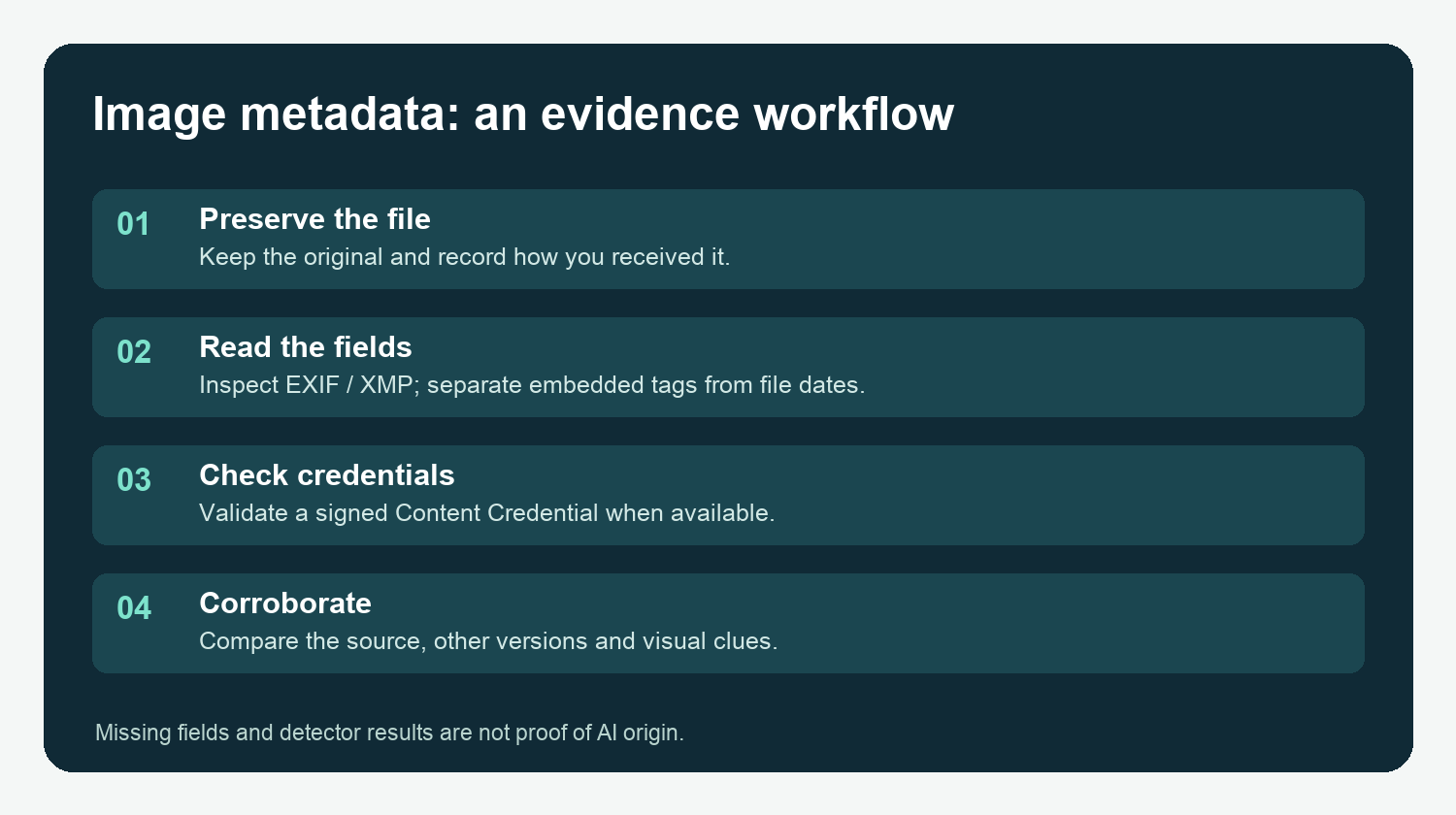
Ask the sender for the original image file, rather than a screenshot or a picture pasted into a chat. Keep an unchanged copy and note where it came from, when you received it, and whether it has been downloaded, resized or exported. If an original is unavailable, label the copy you do have and work within that limitation.
Define the claim before examining the file. Are you checking whether a camera captured the scene, whether AI edited part of it, or whether the picture shows the place in its caption? These are different questions. A real camera photograph can be edited; a realistic image can also depict a false or fictional event.
For sensitive pictures, consider whether metadata reveals location, names or other private information before uploading the file to a third-party service or sharing the report.
Where can you find image metadata?
On a computer or phone
On a computer, inspect the file's information or properties panel and look for image details such as dimensions, camera model and date. On a phone, open the original in the photo app and look for its information or details view. Options vary by device, file type and app; a panel that shows only a few fields does not establish that the file contains no other metadata.
Distinguish a file-system modification date from a camera capture date. A file may receive a new modification date when copied or saved; it is not automatically the date the scene was photographed.
With ExifTool
For a more detailed local inspection, install ExifTool from its official site, open a terminal and run this read-only command, replacing the quoted path with your file:
exiftool -G1 -a -s "/path/to/image.jpg"
The options show metadata group names, include duplicate tag names and use shorter tag names. ExifTool supports reading and writing metadata; the command above reads the file. See the ExifTool documentation for platform setup and options. A viewer may report file and system properties alongside embedded fields, so pay attention to the group name.
Which fields are useful and what do they prove?
| Field or signal | A useful question | Limitation |
|---|---|---|
| Camera make and model | Does the claimed device match the available source? | The value can be changed or copied; it does not authenticate the scene. |
| DateTimeOriginal | Does the stated capture time fit other evidence? | Clocks and time zones can be wrong, and a field can be edited. |
| Software or processing history | Is an editing application named? | An editor name does not by itself establish that AI generation was used. |
| GPS coordinates | Does the recorded location fit the claim? | Coordinates may be absent, incorrect or deliberately changed; they can expose private locations. |
| Missing EXIF or XMP | Is this a screenshot, export or otherwise altered copy? | Missing fields do not prove AI origin or explain exactly what happened. |
EXIF and XMP are metadata formats, not certificates of truth. A field can be useful when it agrees with independently obtained information. It is weaker when there is no original file or no way to establish who wrote it.
In our screenshot and compression experiment, the original test files had no visible EXIF. That experiment should not be used as evidence that screenshots removed camera EXIF; the comparison did not establish that. It is a reminder to check what the starting file actually contained before describing a change.
How do you check Content Credentials?
Content Credentials are based on the C2PA standard and can carry signed claims about an asset and its history. A compatible verifier checks the available credential and its validation status. The Content Authenticity Initiative's inspection guide explains how to inspect available credentials.
Use the AIFakeScan C2PA checker or another compatible verifier to inspect what is available, and read our guide to C2PA results before drawing a conclusion. AIFakeScan uploads the file and retains it privately until you delete the upload; the checker does not fetch remote manifests. A valid signature can support that the signed information has not been altered since signing, subject to the verifier's checks; it does not independently prove that every statement in the credential is true or that the depicted event happened.
No credential found is an absence of available provenance, not proof of AI. Credentials can be missing from a particular copy or never created. Invalid or incomplete results deserve closer review, not an automatic accusation. Record the actual result and which file you tested.
How should you combine metadata with other evidence?
Search for earlier copies or the original publisher. Compare the claim with independent sources, and ask the creator for context when appropriate. If you use an AI image detector, treat the result as an additional signal and keep the tool's uncertainty in view. Our image detection guide explains why no single visual or automated check is enough.
A simple review record makes the distinction explicit:
- Identify the exact file, its source and the claim being checked.
- Record relevant embedded fields and whether an original was available.
- Note the credential verification result and any source or location checks.
- State your conclusion narrowly, including conflicting evidence and unanswered questions.
For example, “The copy has no visible camera EXIF; its origin remains unverified” is more accurate than “No EXIF means AI.” If the claim is about a destination, follow the separate travel photo verification guide.
FAQ
Can image metadata tell me whether a picture is AI-generated?
It may contain a relevant software label or provenance record, but ordinary metadata alone rarely establishes how an image was made. Check the source and any signed credentials, and keep unknowns visible.
Does missing EXIF mean an image was made by AI?
No. A file can lack EXIF for several reasons, including how it was saved or shared. Missing EXIF alone does not identify the creator or production method.
Does a camera model in EXIF prove the image is a real photograph?
No. Ordinary metadata fields can be changed or copied. Treat a camera model as a clue to verify against the original file and other evidence.
Is a valid Content Credential proof that the scene really happened?
No. Validation concerns the signed credential and the verifier's checks; it does not independently confirm every claim or the real-world event depicted.
Can I inspect image metadata without uploading my file?
Yes. A device's information panel or a local tool such as ExifTool can show available metadata without uploading the image. Check what each tool displays and protect sensitive information.